
EagerLED Academy
Why Does TB40 USB Playback Fail When the Video Works on a Laptop?
Nov
A TB40 USB playback failure can occur even when the same video opens on a laptop. Check the player revision, the Type-A drive connection, the supported file system, the individual file size, the publishing workflow and the selected playback source. A laptop test does not verify those conditions on the player.
This checklist is for an integrator preparing a store-display handover. It uses NovaStar’s TB40 Specifications V1.2.1 as a revision-specific reference. Confirm the documentation for the supplied hardware before applying its limits. The aim is to produce an understandable test record before replacing a player.
Separate the two USB connections
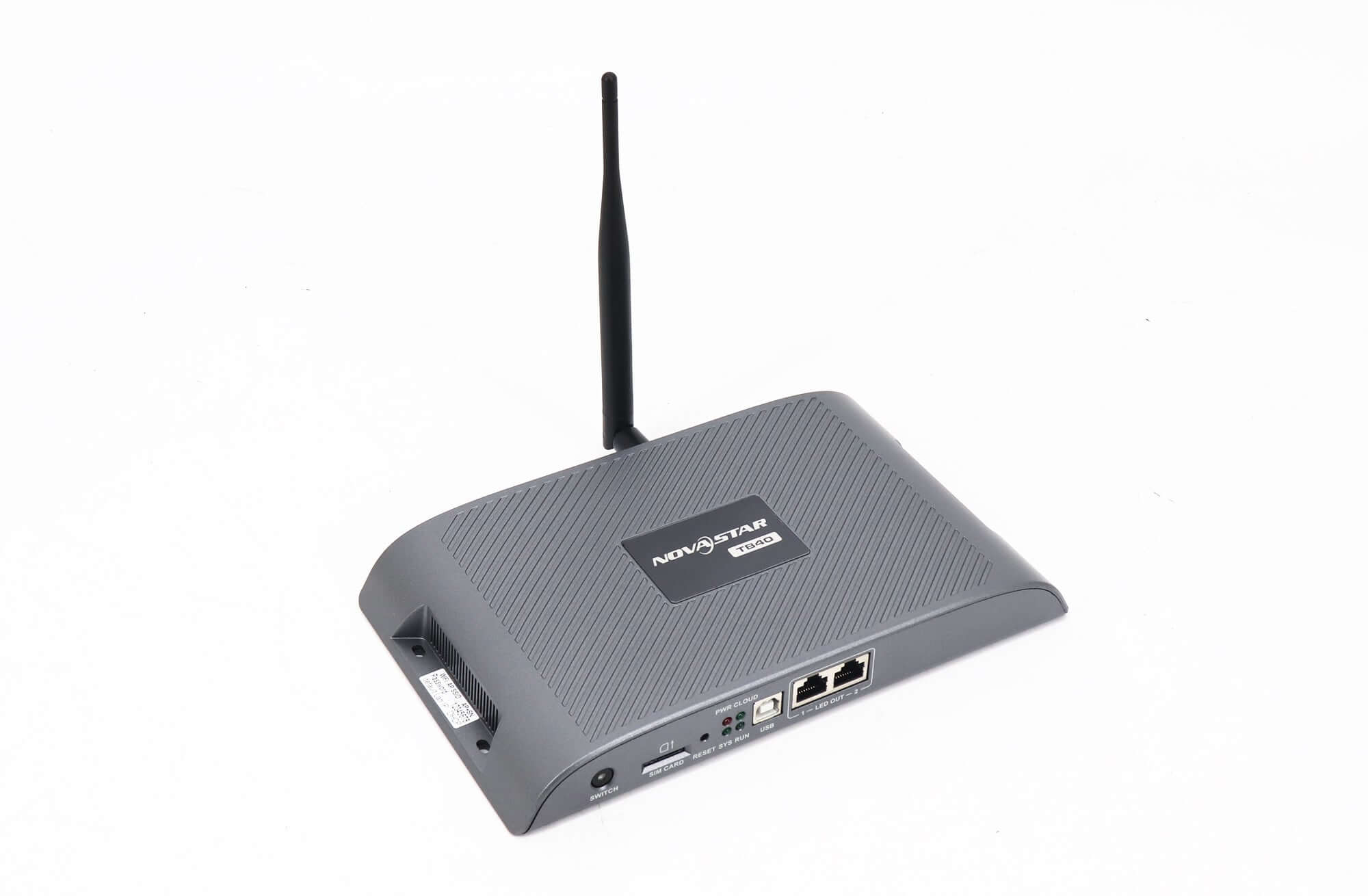
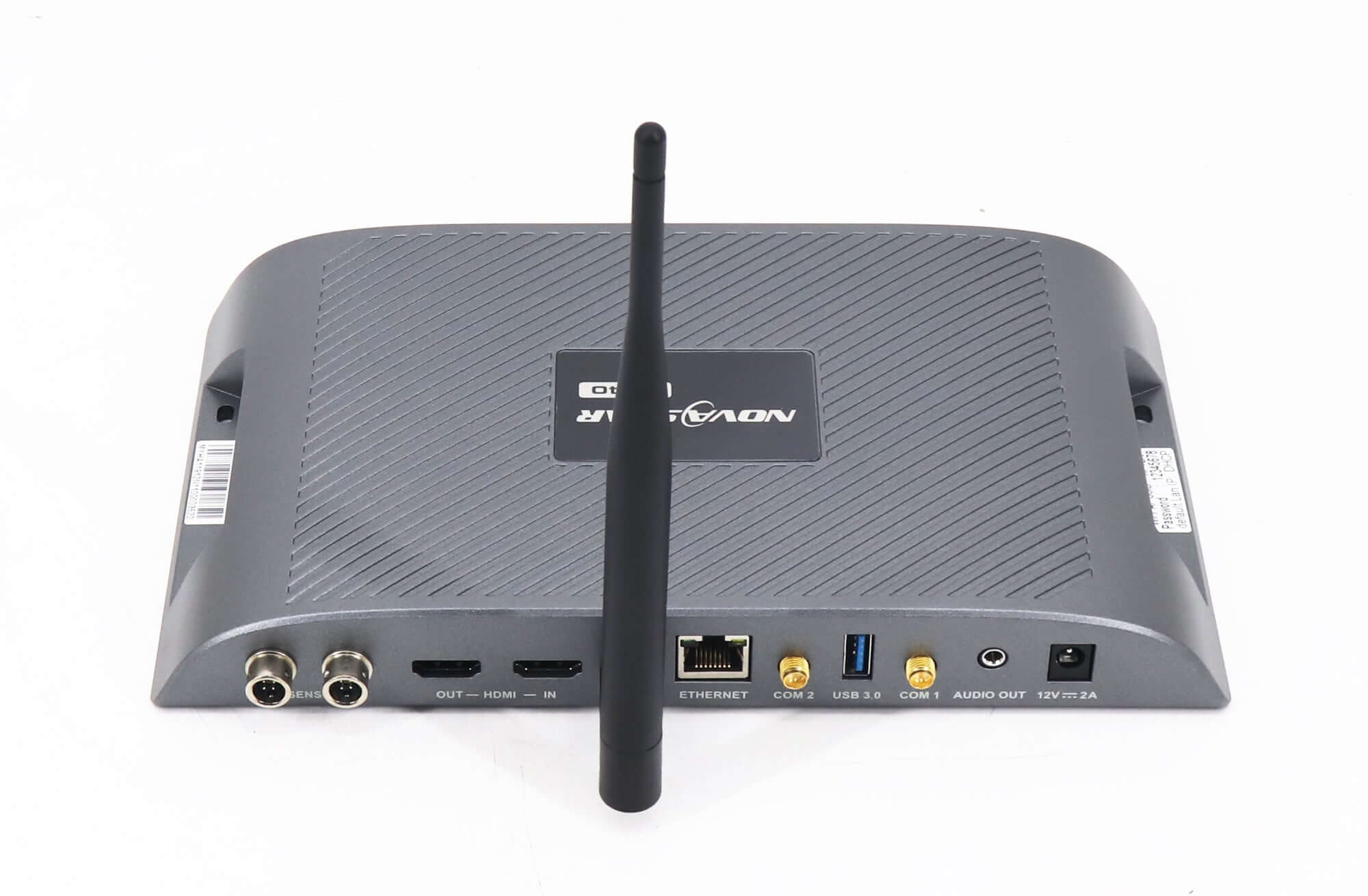
Check the physical connector before changing files. NovaStar’s TB40 Specifications V1.2.1, dated October 20, 2024, identifies the USB Type-B connection as a link to the control computer for publishing and screen control. The USB 3.0 Type-A connection serves USB playback, firmware upgrade and storage expansion. These are separate jobs on the same player.
For a TB40 USB playback check, photograph the connector used by the operator and record the device model from its label. A laptop connected to Type-B establishes a control path; it does not demonstrate that a flash drive inserted in Type-A can supply a valid program. Likewise, a working HDMI picture verifies another source path.
Have the operator describe the intended daily routine in plain language: who prepares the program, how it reaches the shop, and what staff do when inserting the drive. An integrator can then reproduce that routine at the bench. This is more useful than a report that the player has a generic USB problem.
Check the TB40 USB playback drive format
The cited V1.2.1 specification supports Ext4 and FAT32 for the Type-A connection, identifies a maximum single-file size of 4 GB for FAT32, and excludes exFAT and FAT16. Use that revision as a documented reference and confirm the requirements for the actual unit and firmware. Another player’s file-system support is not evidence for this TB40.
Start the TB40 USB playback record with the drive’s file system, the size of the affected file and whether a previously validated drive works. Drive capacity and individual file size are different facts. A file can fit within the drive’s total free space yet exceed the format’s individual-file limit.
Do not begin by formatting the only copy of a customer’s program. Copy the source files and the existing program package to a separate location first, and have the owner verify the backup. If a format change is necessary, use a spare drive for the test. Formatting removes the drive’s existing contents, so it belongs in a controlled preparation step.
A useful TB40 USB playback comparison changes one item at a time. Keep the player and program unchanged when substituting a validated drive. Then keep the drive and player unchanged when trying a validated short program. This gives the service team a result they can interpret instead of several simultaneous changes.
Separate file compatibility from program publishing
A movie opening on the laptop proves that the laptop’s software can decode it. It does not establish compatibility with the TB40’s documented media limits or show that the correct publishing procedure was followed. Retain the original export and record the codec, resolution, frame rate, bit rate and file size for review against the applicable manufacturer table.
For TB40 USB playback, compare the failing material with a short program already demonstrated on the same unit. If the known program plays, preserve that result before changing anything else. The difference may concern the media export or program preparation. If neither plays, return to drive recognition, the connection and the selected source.
Renaming a filename extension does not transcode the video. Ask the content producer for an export within the confirmed requirements and test the exported file itself. Keep its filename distinct from the original so the operator can identify which version produced each result. Avoid promising that one container extension guarantees playback.
Also document how the program was prepared and published, including the software name and version. Follow the workflow for that software and player combination. A folder containing raw videos and an approved published program should not be treated as interchangeable without a test. This article does not prescribe a universal folder name or autoplay rule.
Check which source the screen is showing
The TB40 can operate with stored content or an external HDMI source. Its front-panel SWITCH indicator identifies the mode in the cited reference: on for synchronous mode and off for asynchronous mode. Record the current state and the expected source before concluding that the drive has failed.
A TB40 USB playback investigation should distinguish three observations: the operator can communicate with the player, the expected program is available, and the LED screen is showing the intended source. One successful observation does not automatically establish the other two. Keep the screen mapping unchanged while isolating a content-source problem.
If a source change restores the expected image, note exactly what changed and have the operator repeat the normal routine. A maintenance visit should leave a reproducible operating procedure. The integrator also needs to confirm what should happen after the planned startup sequence; a single successful clip is only one part of acceptance.
Record the result before ordering hardware
| Observation | Record | What it helps separate |
|---|---|---|
| Drive comparison | File system and result using a validated spare drive | Storage preparation from player behavior |
| Program comparison | Known program versus affected export on the same unit | Media or publishing differences |
| Source selection | Expected source and observed mode indicator | Content availability from source routing |
| Handover | Software version, tested filenames and repeatable staff actions | A temporary result from a usable operating routine |
Use this record before buying another player. A TB40 USB playback symptom can originate in the prepared media, the drive or the operating workflow. A replacement order needs the evidence that makes a hardware fault plausible, together with the supplied unit’s revision. Purchasing an identical box without that information may reproduce the same problem.
For the wider system, retain the receiving-card model, screen pixel dimensions and output wiring record. These identify the installation if a replacement eventually becomes appropriate. Our Taurus document library helps locate model-specific references; the TB40 product page identifies the available ordering configurations.
Questions from store-display integrators
Does a working network update prove that the USB drive is compatible?
No. A successful network update demonstrates that particular publishing path. Test the intended drive and program separately on the installed unit before accepting TB40 USB playback as ready for the store.
Should staff use the firmware-update function to fix every playback failure?
First preserve the configuration and collect the comparison results. A firmware change needs a documented reason, the correct package and a recovery plan. A media or drive-format problem does not by itself establish that firmware is the cause.
What should the final acceptance program include?
Use the customer’s actual content sequence, including any audio, scheduling and startup behavior the project requires. Agree on the expected result and record what was demonstrated. Keep a validated copy available to the responsible operator.
Send a reproducible support request
Send EagerLED the player label and test record, with the drive format, affected file properties, publishing software version and observed source mode. Explain which comparison succeeds and which fails. This gives the TB40 USB playback review a specific starting point and helps determine whether the next step concerns content preparation, setup or a replacement purchase.