
EagerLED Academy
P1.53 Module Resolution: Why the Pitch Label Is Not Enough
Nov
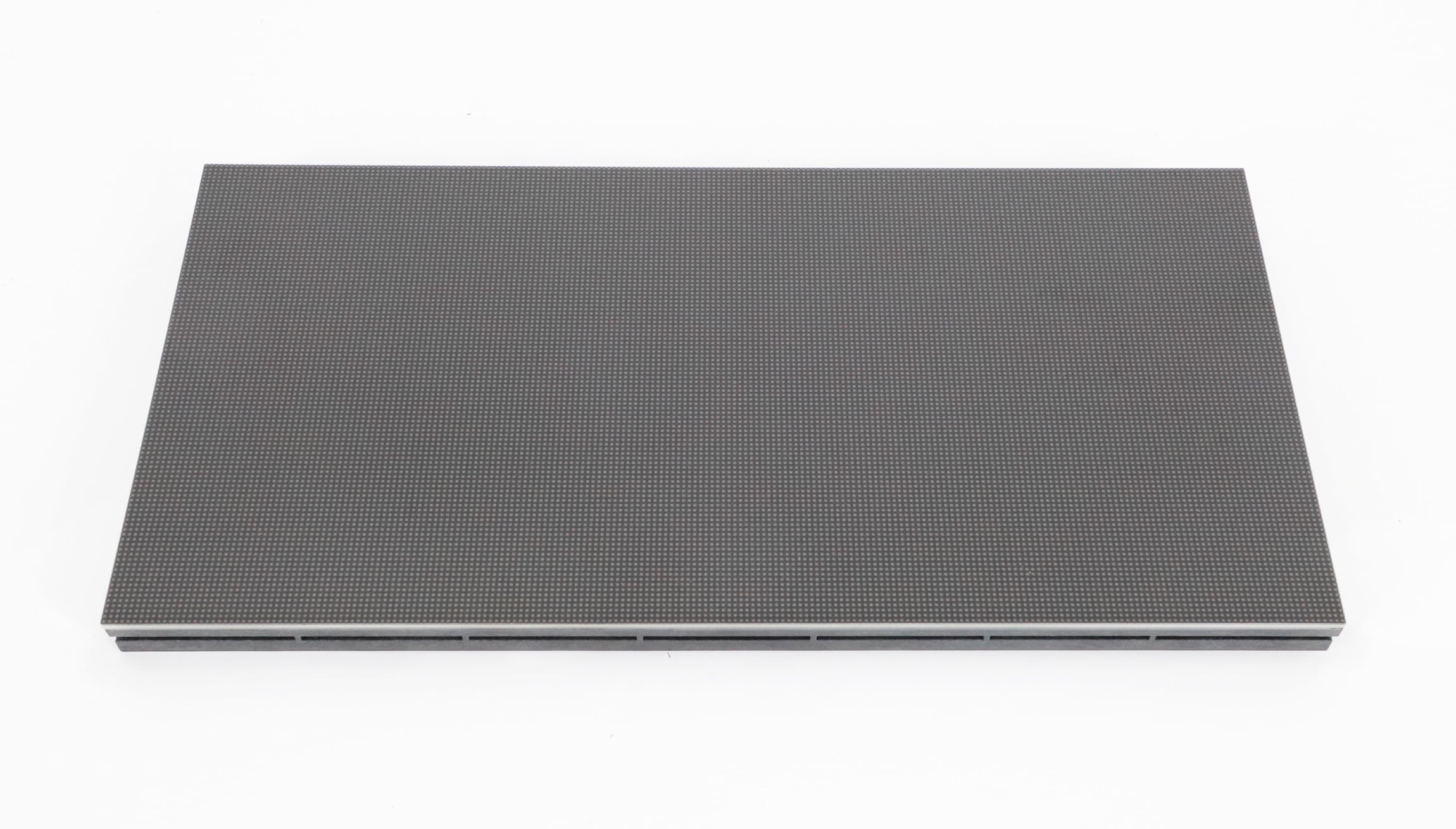
Use the specified pixel grid to calculate P1.53 module resolution. Do not divide the module width by the rounded pitch label and round the answer into a new pixel count. The EagerLED model P1.53-HD26S-SMD1010-208×104 is documented as 208 × 104 pixels in a 320 × 160 mm module. That explicit grid is the starting point for its screen map.
This explanation is for an integrator checking the native canvas of a new indoor display before approving a quotation. It uses the model-specific specification linked below and clearly labeled layout examples. Confirm the supplied revision and module arrangement before turning an example into a project design.
Read P1.53 module resolution from the specified grid
The model’s specification states a module resolution of 208 pixels horizontally and 104 vertically. It also states physical dimensions of 320 × 160 mm (12.6 × 6.3 in). Keep those two descriptions in separate fields: one describes the pixel grid, while the other describes the physical size used to plan the installation.
For this P1.53 module resolution, the total is 208 × 104 = 21,632 pixels per module. That multiplication counts pixel positions. It does not calculate a receiving card’s supported configuration, power requirement, viewing distance or brightness. Each of those requires its own documented project conditions.
Check the full model identifier on the P1.53 module product page and its model-specific module specification. The calculation here uses the stated 208 × 104 grid. It should not be generalized to every product advertised with a similar pitch label.
Why dividing by the pitch label gives a different answer
Dividing 320 mm by the displayed 1.53 mm label gives approximately 209.15. That result is not evidence that the module contains 209 horizontal pixels. The pitch label has limited displayed precision, so reversing it into an integer grid can introduce a rounding error before the screen design even starts.
As a consistency check, dividing the stated physical width by the stated horizontal grid gives 320 ÷ 208 ≈ 1.53846 mm. The height calculation gives the same result: 160 ÷ 104 ≈ 1.53846 mm. These are arithmetic checks using published nominal dimensions, not measurements of manufacturing tolerance.
The practical P1.53 module resolution decision is straightforward: retain the explicit integer grid and preserve its source. Do not replace it with an inferred grid obtained from a shortened product label. If a quotation or drawing gives a different integer count, reconcile the exact model and revision before approving either document.
This also explains why the calculator’s precision cannot repair incomplete product identification. More decimal places in a calculation do not tell the buyer which module the supplier intends to deliver. The order needs an identifiable item and a confirmed pixel grid before the integrator can calculate a dependable native canvas.
Build a canvas from whole modules
Once P1.53 module resolution is confirmed for the selected item, multiply horizontal pixels by the number of module columns and vertical pixels by the number of module rows. Use a rectangular arrangement with unchanged orientation for the examples below. Cabinet frames, gaps and mounting allowances are outside these module-area calculations.
| Module layout | Module-area dimensions | Native canvas | Total pixels |
|---|---|---|---|
| Four columns, three rows | 1,280 × 480 mm (50.4 × 18.9 in) | 832 × 312 pixels | 259,584 |
| Six columns, four rows | 1,920 × 640 mm (75.6 × 25.2 in) | 1,248 × 416 pixels | 519,168 |
In the second example, the physical width is 1,920 mm, while the native width is 1,248 pixels. The repeated number in a familiar video format must not be confused with a physical dimension. Write the unit beside each value whenever the quotation moves between the purchasing, mechanical and content teams.
For this P1.53 module resolution example, six columns give 6 × 208 = 1,248 horizontal pixels. Four rows give 4 × 104 = 416 vertical pixels. Multiplying the final axes gives 519,168 pixels, which also equals 24 modules × 21,632 pixels per module. The second calculation is a useful cross-check for a copied spreadsheet formula.
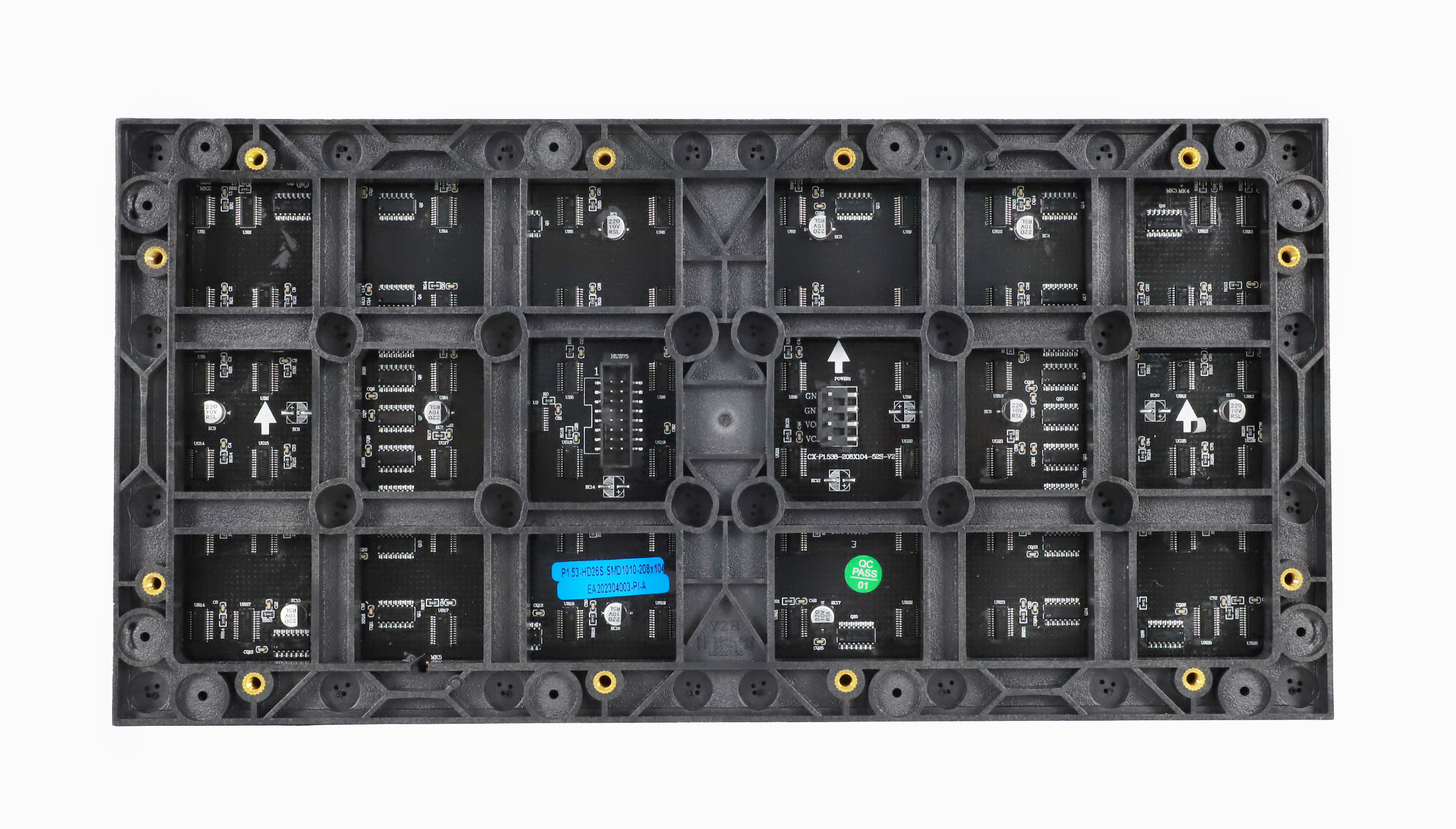
Use a module-position drawing to check that the assumed columns and rows match the proposed build. A quantity of 24 modules alone does not distinguish six columns by four rows from eight columns by three rows. Both use the same quantity, but the image canvas and physical shape differ.
Cross-check the shape as well as the total
The six-column, four-row example has a module-area aspect ratio of 1,920 ÷ 640 = 3:1. Its pixel canvas has the same ratio: 1,248 ÷ 416 = 3:1. This comparison is a useful way to catch a horizontal value copied into the vertical field, provided the modules retain the stated orientation.
Now consider eight columns and three rows of the same item. The module area becomes 2,560 × 480 mm (100.8 × 18.9 in), and the canvas becomes 1,664 × 312 pixels. The total remains 519,168 pixels, but the shape is approximately 5.33:1. A file prepared for the earlier 3:1 example therefore needs a different presentation plan.
Use these checks while reviewing the layout, before the content export is approved. Ask the designer and integrator to compare the two axes against the same position drawing. A matching grand total can conceal a different screen shape, so it should not be the only acceptance value on the quotation.
If the installation uses rotated modules, irregular edges or several separated display areas, have the integrator supply the corresponding map. The simple rectangular examples do not define those arrangements. Preserve the original orientation assumption alongside the calculation so that a later reader can see when the example applies and when a new map is required.
Give the content team the native canvas
A P1.53 module resolution calculation becomes useful when the content team receives the final horizontal and vertical pixel counts. Include the orientation, intended visible area and any project-specific mapping requirements. A description containing only the screen width in meters leaves the designer without a complete export canvas.
Ask the integrator to explain how the intended input will be displayed on that canvas. A video source’s output format and the LED screen’s native grid are separate parts of the signal path. Confirm the processing and mapping behavior for the chosen controller rather than assuming that a source image automatically matches the display.
Keep the approved P1.53 module resolution, module layout and native canvas together in the handover. If the order changes from six columns to another arrangement, revise the canvas and tell the content team. Reusing an earlier image template without checking the updated axes can create a presentation problem even when the module calculation itself was correct.
Questions before approving the display map
Can a Full HD input add more native pixels to the module?
No. Input processing does not add physical pixel positions. Identify the native canvas from the confirmed P1.53 module resolution and layout, then verify how the selected processor handles the intended input.
Does the same pixel count prove a module can replace an old one?
No. This article concerns a new-display layout. The linked product’s purchasing notice excludes use as a spare for an existing old display. Pixel count alone does not establish mechanical, electrical or color compatibility.
Is the total pixel count enough to choose a controller?
It is one input to the selection. The controller’s supported width, height, output allocation and applicable operating conditions also need checking. Give the integrator both native axes and the module arrangement rather than only a total.
Request a quotation with the grid attached
Send EagerLED your P1.53 module resolution and layout requirement with the intended module columns, rows, orientation and input source. Ask for confirmation of the exact supplied module and native canvas. For other physical formats, review the indoor LED module category and repeat the calculation using each model’s own specified grid.