
EagerLED Academy
Will Your Live HDMI Feed Work After a NovaStar TB2-4G Swap?

Nov
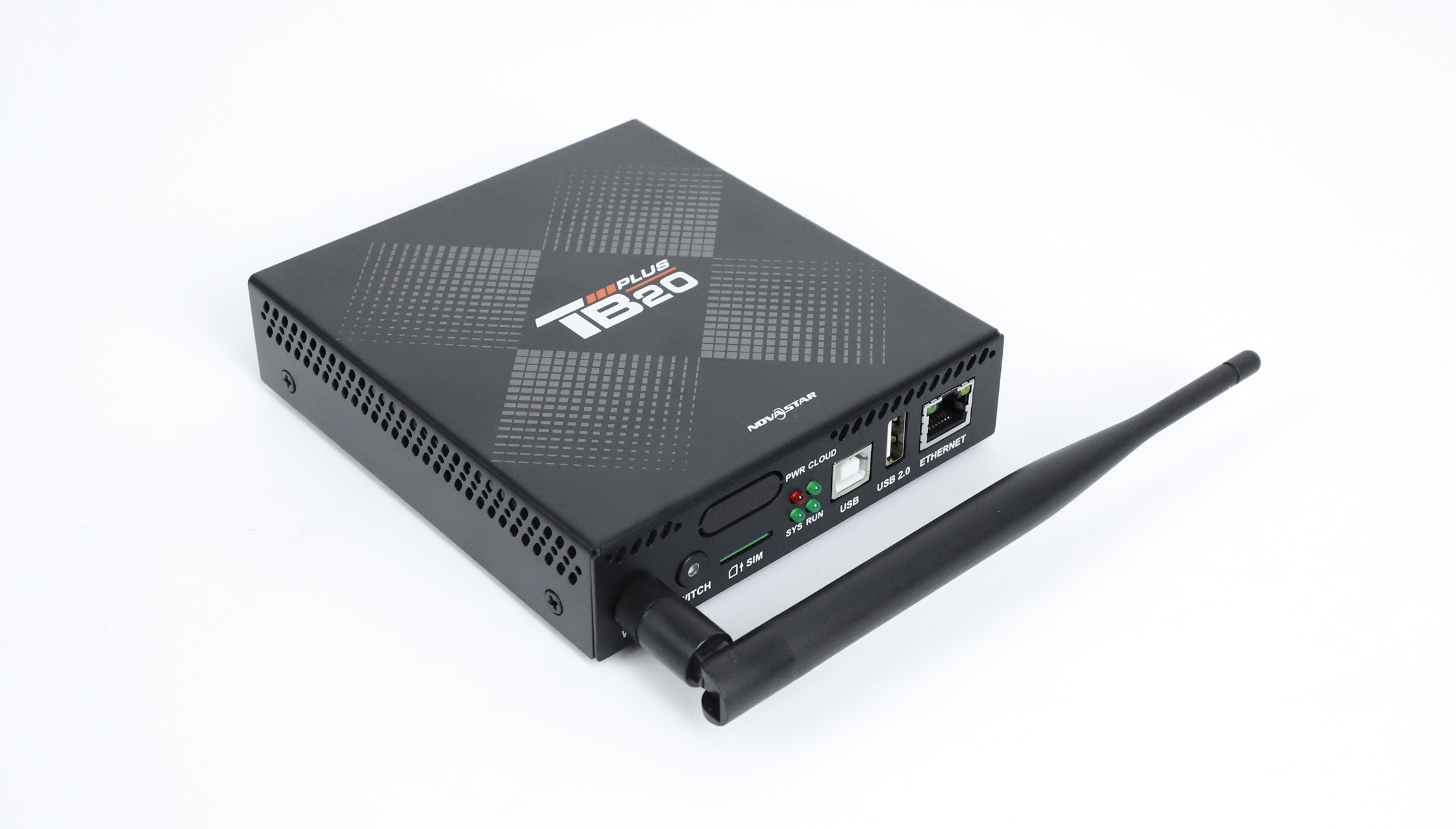
A live HDMI feed can work after a NovaStar TB2-4G is replaced with a TB20 Plus if the source sends a supported progressive timing, the LED wall fits the new player’s output limits, and the picture can be mapped at the intended size. Start with two numbers from the installation: the source’s actual output timing and the wall’s native width and height in pixels.
The old player may have spent years showing a playlist between occasional live events. A sign that plays its stored advertising perfectly on Monday can still fail when a presenter connects a laptop on Friday. For the technician signing off a replacement, those are two separate acceptance tests. Here is how to specify the second one before asking for a quote.
Trace the live HDMI feed to its source
Stand at the player and follow the HDMI cable upstream. It may end at a laptop, a signage computer, a video switcher or a converter in another room. Record the device immediately upstream of the player and the output setting on that device. A camera’s recording format tells you little if a switcher between the camera and the screen changes the signal. Take a photograph of the output settings while the normal event source is connected.
Ask the operator when the live HDMI feed takes over. A store may switch manually for staff briefings, while an event space may expect the wall to follow an active HDMI connection and then return to scheduled content. The original TB2-4G reference describes both manual switching and HDMI priority. Record what the installation actually does when a source appears, when it disappears and when the laptop is connected but asleep.
Read the timing at the end of the cable
Write the signal as width × height, refresh rate and scan type. For example, the letter at the end of 1080i or 1080p changes the decision. NovaStar’s TB20 Plus V1.0.0 specification lists progressive HDMI input and excludes interlaced input. If a switcher is configured for interlaced output, have its operator identify a progressive preset the entire path supports before approving the proposed player.
The same specification gives a maximum input example of 2048 × 1024 at 60 Hz and a pixel clock ceiling of 164 MHz. A number from the LED output table cannot qualify a custom HDMI timing. For a nonstandard source, include its full output settings and ask the supplier to check the timing against the revision supplied. If a laptop normally chooses its own resolution, note whether that selection changes when another device is connected. A screenshot taken with a desktop monitor attached may describe a different signal.
Work through one screen in pixels
Consider a hypothetical wall that is 1,280 pixels wide and 384 pixels high. Multiplication gives 491,520 physical pixels. That is inside the TB20 Plus total of 650,000. It answers the first question about the LED output. To evaluate the live HDMI feed, now compare each wall dimension with the corresponding source dimension. In the documented synchronous full-screen scaling mode the TB20 Plus can reduce the picture. Its input must cover both dimensions of the LED canvas.
Suppose the operator selects a 1,920 × 1,080 progressive source. Both dimensions cover the wall. Assuming the exact timing is supported, the dimensional check passes. Yet the wall is much wider in proportion than a normal presentation slide. Use a slide containing a circle, a line of text close to each edge and a recognizable logo. Have the client decide whether empty margins, a cropped composition or an adjusted presentation layout is acceptable before fixing the live setup.
Now change only the source width to 1,024 pixels and keep the wall at 1,280. Even if the source has enough lines vertically, the width falls short for full-screen downscaling. The same cabinet wiring and the same 491,520-pixel calculation give a different purchasing answer. Ask whether the source can supply an appropriate wider timing or whether a separate processing stage is needed. The TB20 Plus product reference lists the input, output and scaling limits for this comparison.
Build a handover record the operator can repeat
| Item | Evidence to keep | What it settles |
|---|---|---|
| Upstream device | Photo of the output menu used during an event | Timing delivered to the player |
| LED canvas | Pixel dimensions and cabinet map | Output load and scale direction |
| Source change | Operator’s expected sequence | Who restores the playlist |
| Acceptance image | Approved slide and photo of its intended appearance | What counts as a correct picture |
Keep the person who owns the presentation system involved. The sign installer might control the player, while the venue’s audiovisual contractor controls the switcher. Agree which person can change a timing preset and which person must approve a changed picture layout. Save a copy of the presentation used during testing so the next technician can distinguish a changed slide deck from a changed player setting.
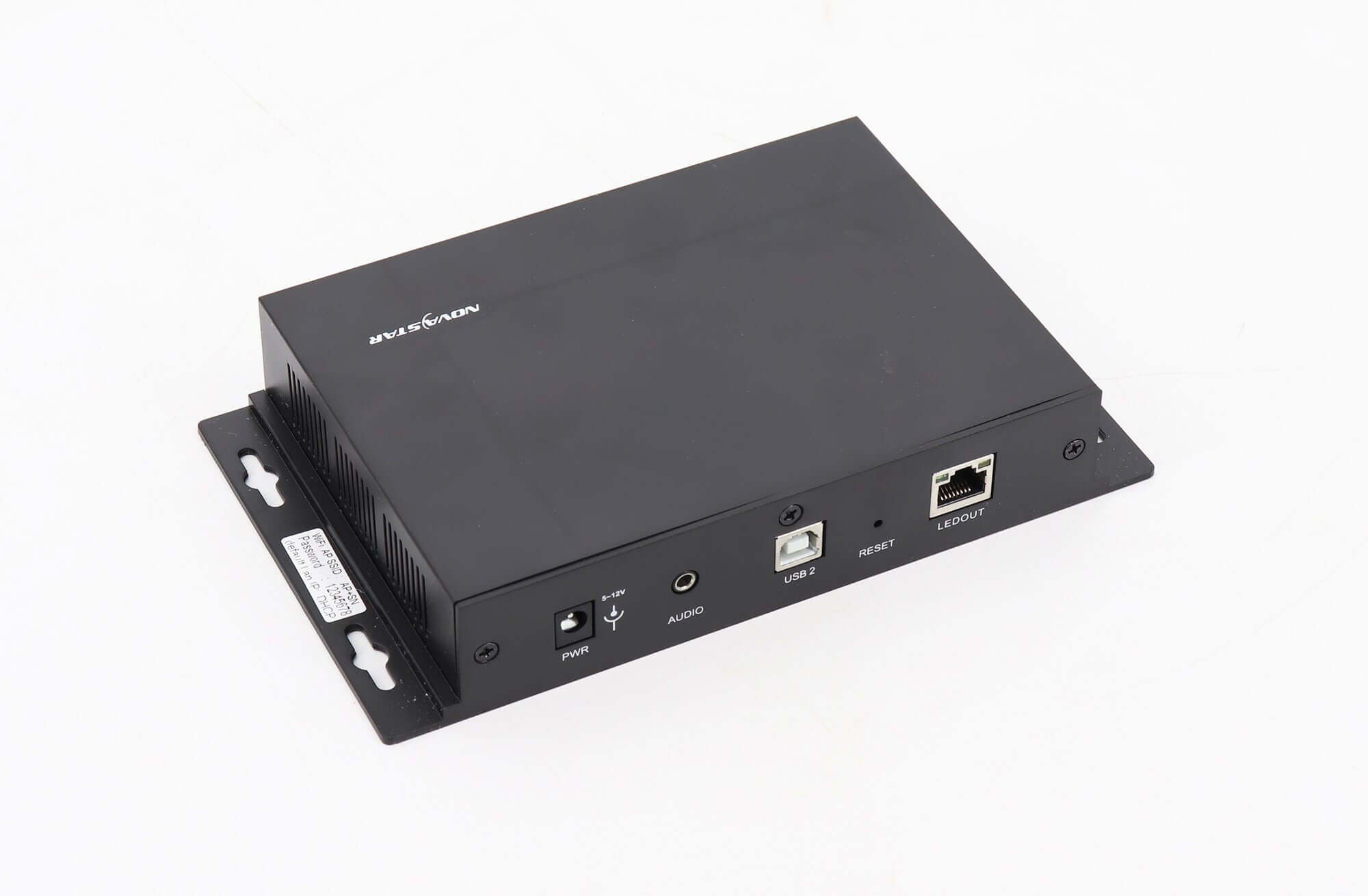
At the equipment rack, label the management cable and the LED output cable by destination. Both can end in familiar-looking plugs. The TB2-4G documentation identifies its network connection and its LEDOUT connection separately. Do the same with the power adapter: retain a photo of the old label and check the supply specified for the proposed replacement. Leave that decision with the technician responsible for the hardware.
Test a full changeover during the maintenance window
Start with an approved stored item so the operator can recognize the normal sign. Introduce the live HDMI feed through the same switcher, adapter and cable path used at events. Display the reference slide and check the outside edges from the audience position. Have the operator point to the smallest type they need to read and verify that a circle remains round. Record the selected source, the timing of the live HDMI feed and the actual result before making adjustments.
Then remove the live HDMI feed in the way the operator normally ends the event. Closing a laptop lid, unplugging its cable and switching off a presentation source can produce different conditions at the upstream switcher. Choose the real sequence and document what the wall shows next. If a technician must make a manual selection to restore the playlist, include the exact control they used in the handover sheet. If an automatic return was part of the order, keep that item open until it is demonstrated on site.
Questions from site technicians
Can a video file on a USB drive stand in for this test?
A file can show that stored playback works. It bypasses the external output timing, the signal cable and the source-change procedure. Keep that result as one test, then connect the live HDMI feed and record the second result separately.
What if the test laptop works but the venue switcher does not?
Capture the settings at the switcher output and compare them with the laptop’s successful timing. If an adapter or extender sits between the switcher and player, include its model and the location where the timing was read. That information gives the supplier a specific path to reproduce.
What if every site in a rollout uses the same player?
Group sites by screen geometry and upstream source equipment before choosing a pilot. Two branches can use the same player and receive a different live HDMI feed because their meeting rooms or broadcast systems were built at different times.
Send the signal details with the replacement request
Include the old label, the source timing, the wall dimensions and the operator’s expected changeover in the request. Mention any live HDMI feed that comes through a converter or cannot be changed to a different format. Send the installation details to EagerLED so the proposed configuration can be reviewed against the event your screen actually has to show.