
Eager-LED Academy
Colorlight 5A-75B Firmware: Which Branch Should You Order?
Oct
Choose the Colorlight 5A-75B firmware branch approved for your receiving-card revision and cabinet configuration; do not choose by the highest version number alone. For a spare-card order, identify the working installation first, then obtain a written hardware and firmware match from the supplier. The name “5A-75B” and a matching connector layout are not a complete replacement specification.
Quick buying rule: send photographs of the existing card, its reported firmware, the module driver IC and your cabinet configuration. Ask the supplier to confirm the supplied PCB revision, firmware branch and version, configuration handover and acceptance procedure before dispatch.
Contents — expanded · Hide contents— collapsed · Show contents
1. Compare the firmware branches without assuming compatibility
Colorlight’s official 5A-75E/5A-75B download page, checked on 14 October 2026, lists separate packages labelled V13.39 (Normal), V9.53 (PWM) and V6.69 (LS0allDA). These are distinct labelled options, not a single upgrade ladder. This is a record of the listed packages, not a recommendation to install any of them on an unverified card.
| Listed branch | Question to resolve before ordering |
|---|---|
| Normal — V13.39 | Is this branch approved for the supplied PCB and the buyer’s existing cabinet profile? |
| PWM — V9.53 | Does the cabinet manufacturer specify this branch for the exact module and driver IC? |
| LS0allDA — V6.69 | What documented installation requirement makes this the correct package for this order? |
Use the EagerLED Colorlight download index to locate supporting documents, then have the supplier confirm the package against your installation. A shared 5A-75E/5A-75B download label does not establish that the two card models are interchangeable. Nor does “PWM” by itself identify every compatible module.
If the seller cannot confirm the branch, keep the order at the identification stage. Do not use a working production wall to discover which package might fit. The selection workflow below concerns commercial LED-display spares; it does not cover FPGA development or third-party replacement firmware.
Back to contents ↑2. Record the working card and cabinet
A useful spare-card enquiry describes a known installation rather than only requesting “one 5A-75B.” Keep the evidence associated with the cabinet type and screen it came from, particularly when your inventory includes similar-looking cards.
2.1 Photograph the hardware identity
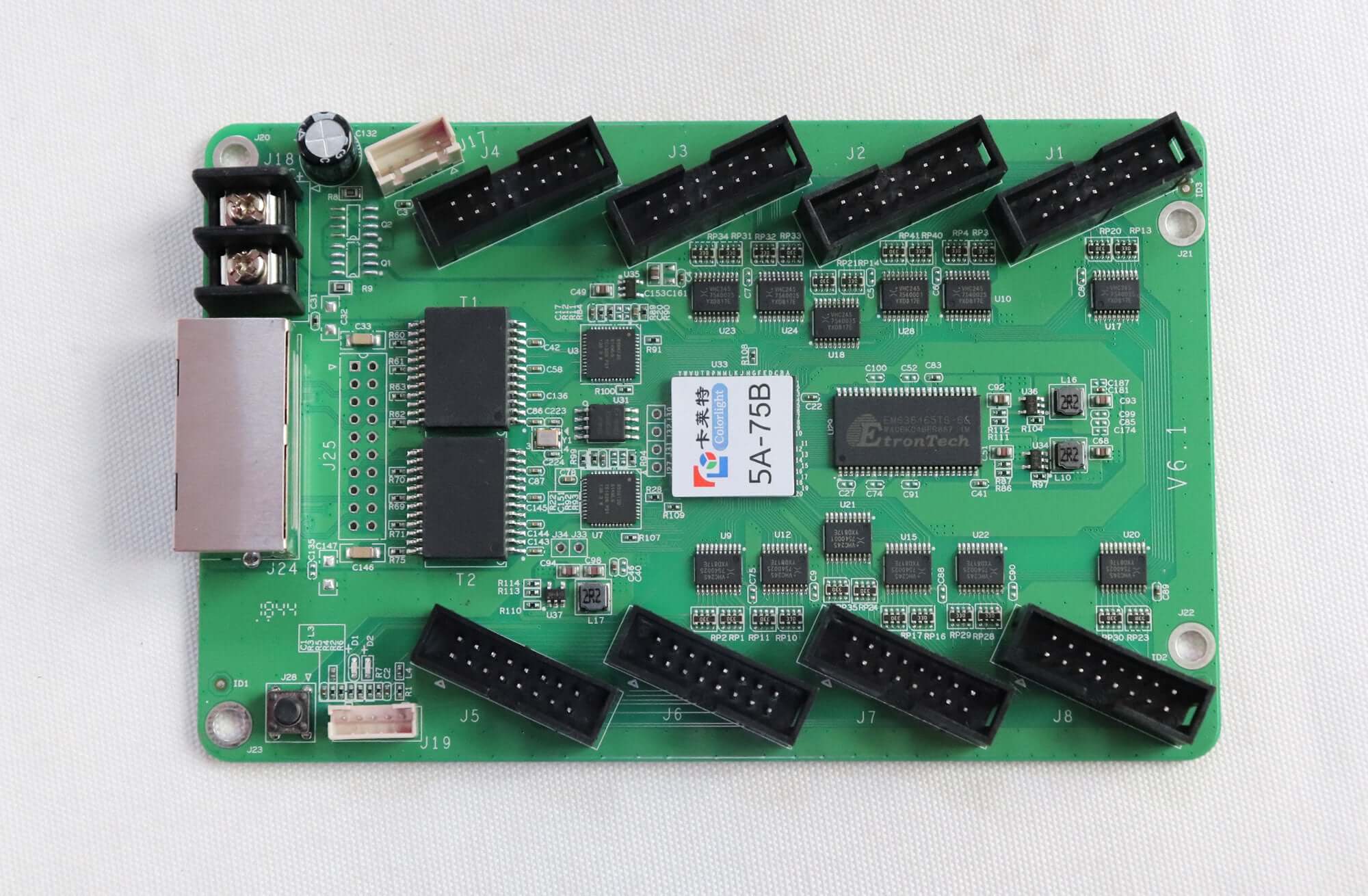
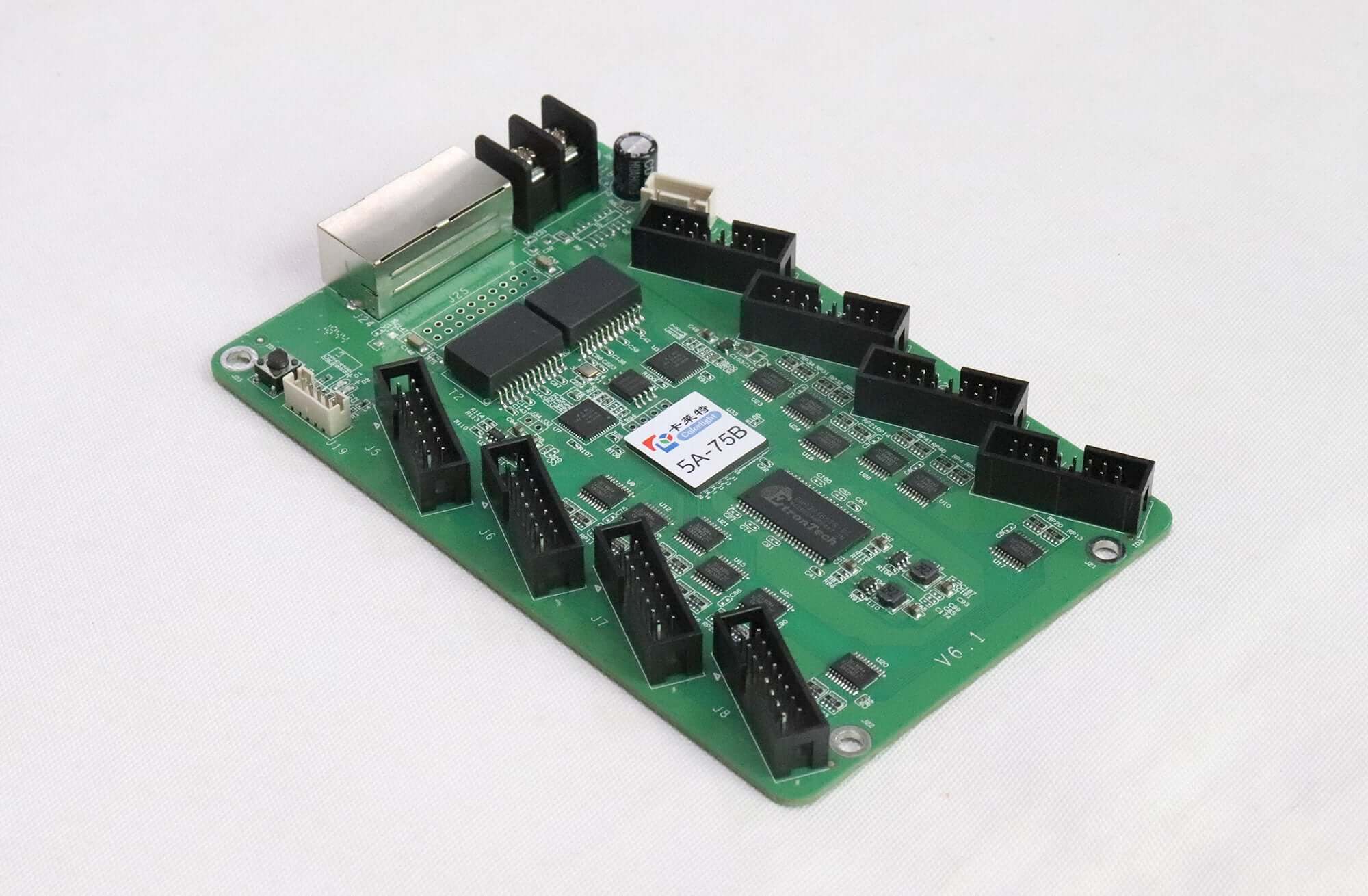
With the cabinet safely isolated by a qualified technician, capture the card’s model label, visible PCB revision, both sides of the board and the connected module arrangement. Include the module label and driver-IC marking. Ask the cabinet manufacturer for the module drawing or approved configuration if markings cannot be read.
Record cabinet pixel dimensions, module arrangement, scan information where documented, sender/controller model and existing cabling. Photos support identification, but a familiar connector or board colour cannot prove firmware compatibility.
2.2 Save the software and configuration record
Ask the commissioning technician to capture the receiving-card information reported by the installation’s supported configuration software. Record the software name and version, reported card model and firmware, and the origin of the known-good cabinet settings. Do not assume that the newest configuration application supports every older installation.
If the screen is still working, preserve its approved records before planning a replacement. If the failed card cannot be read, use documented commissioning records or evidence from a confirmed identical working cabinet. Do not copy settings from a merely similar cabinet and call them verified.
Back to contents ↑3. Separate firmware, cabinet settings and calibration
Treat these as separate handover items. A firmware package changes the receiving card’s operating software. Cabinet settings describe how the installation should drive and map its modules. Calibration records concern the display corrections used by that installation. Receiving a firmware file alone does not deliver a ready-to-install spare.
| Record | What to request |
|---|---|
| Firmware identity | Exact branch, version, supported hardware and approved installation procedure |
| Cabinet configuration | Known-good settings, source cabinet, compatible software and restoration instructions |
| Screen mapping | Cabinet position and connection information needed to restore the replaced unit |
| Calibration | Whether it is used; where the approved records are held; who restores them |
| Recovery plan | Support contact, permitted recovery method and maintenance window |
Ask whether a proposed backup actually contains each required item and how it will be restored. Do not assume a configuration export includes the firmware or every calibration record. The required files and recovery method must be confirmed for the supported software and card revision.
Back to contents ↑4. Put the matching requirements in the quotation
Use this order checklist to make the supplier’s proposed match reviewable. It is a purchasing worksheet, not a certification that an uninspected card will work.
- Application: commercial spare for the identified screen and cabinet type; required quantity and delivery destination.
- Hardware: supplied model and PCB revision, with reference photos of the existing card.
- Firmware: confirmed branch and version; state whether preloaded before dispatch.
- Cabinet match: driver IC, cabinet resolution, module layout, supported settings and sender/controller identified.
- Handover: approved configuration, software version, mapping and calibration responsibilities.
- Acceptance: one-card verification, comparison against a known-good cabinet and an agreed remedy if the supplied configuration does not pass.
- Commercial scope: current availability, price, support scope and any preparation charges confirmed in the quotation.
Compare suppliers against this completed scope. A bare receiving card and a spare prepared for a documented cabinet configuration are different quotations. If an alternative model is offered, require a new compatibility review rather than accepting it on the basis of similar capacity or interfaces.
Back to contents ↑5. Accept one spare before approving the batch
Agree on a controlled test with the cabinet manufacturer or qualified commissioning technician. For a multi-card purchase, validating one proposed spare first can expose a mismatch before it is repeated across the shipment.
- Identify the supplied unit. Compare its model, PCB revision and reported firmware with the approved quotation.
- Restore the approved cabinet profile. Follow the supported procedure for the exact card and software. Keep the original installation records available.
- Check the intended cabinet. Verify module mapping, colour order, representative content and agreed brightness settings against the known-good reference.
- Check the required operating conditions. Where relevant, include low-brightness content and the buyer’s camera-use requirement in the agreed test.
- Verify restart and handover. Confirm the accepted configuration remains usable after a controlled restart, record the outcome and retain the final files.
This is a proposed acceptance workflow, not a report of an EagerLED test. A failed image may involve settings, module wiring or another installation issue; it does not justify trying unrelated firmware branches. Stop and review the evidence with the supplier before making further changes.
Back to contents ↑6. Resolve common replacement questions
Should I order the branch with the highest number? No. First confirm the branch and hardware match. Version numbers from differently labelled packages do not establish a safe upgrade path.
Can a 5A-75E replace a 5A-75B because they share a download page? That page alone is insufficient evidence. Have the supplier review the actual hardware, cabinet settings and installation requirements.
Is a matching firmware version enough? No. The card revision, module configuration, screen mapping and any calibration handover still need checking.
Request a 5A-75B spare-card match. Send the installed card photos, reported firmware and configuration-software version, module driver IC, cabinet pixel dimensions, sender/controller model and required quantity. State whether the existing cabinet is working and whether approved settings are available.
Start with the Colorlight 5A-75B product listing, then request confirmation for your exact installation.
Request a spare-card configuration checkDiscuss your 5A-75B spare