
EagerLED Academy
NovaLCT Download and Version Guide: Which Version to Use and How to Connect It

Nov
NovaLCT is NovaStar’s Windows configuration software for synchronous LED control systems. You use it to set up sending boxes, all-in-one controllers and receiving cards: screen mapping, receiving card parameters, brightness, calibration data and firmware. For a new setup, choose the newest NovaLCT version whose release notes list your hardware; for an existing screen, start with the version already used on it and upgrade only when you need a new feature or device.
This guide is for technicians and integrators who need to download NovaLCT, decide which version to install and get it talking to the hardware. It brings together the versions we host on this site, summarizes what their release notes say, and covers the checks to run when the software does not find the controller.
The version details below come from the release notes collected in our download posts. NovaStar updates the software over time, so always read the notes for the version you install.
1. What NovaLCT does
A NovaStar synchronous LED screen has a sending device, such as an MCTRL box or a VX all-in-one controller, and a receiving card in every cabinet. NovaLCT is the software that tells this chain how the screen is built. It runs on a Windows computer connected to the sending device.
01. What you configure with it
Typical tasks include setting the receiving card parameters for the module and driver IC, mapping cabinets to Ethernet ports, adjusting brightness, uploading calibration coefficients and updating firmware. Our product pages show how closely the hardware depends on it. The MRV328 page says its status detection of temperature, voltage, Ethernet cable communication and video source runs in NovaLCT, and that configuration file readback is supported from NovaLCT V5.0.0 or later. The VX600 page lists NovaLCT and V-Can for screen configuration, Ethernet port backup settings, layer management, presets and firmware updates.
02. Which hardware it works with
The release notes group supported equipment into three families: synchronous controllers, video controllers and multimedia players. The V5.4.7 notes, for example, list synchronous controllers from the MCTRL300 to the MCTRL4K and MCTRL1600, video controllers including the VX4S, VX6S, VX16s and VX1000, and Taurus multimedia players from the TB1 to the TB60. Receiving cards are configured through the sending device they connect to.
03. How it differs from other NovaStar software
Our product pages mention several NovaStar programs, and they do different jobs. The configuration software described here sets up the screen itself: cabinets, receiving cards, brightness and calibration. The VX600 and VX1000 pages also list V-Can, used for video controller operation such as layer and preset management. The VX Pro pages list Unico and the VICP app as further control options. A typical service laptop therefore carries the configuration software plus whichever operation tool the controller uses. Knowing which program does what saves time when a technician is asked to “fix the screen” and the real issue is a layer setting on the video controller rather than a receiving card parameter.
04. What to bring to site
A service visit goes faster with a short kit: a Windows laptop with the matching software version already installed, a USB cable of the type the controller uses, a spare Ethernet cable, the saved configuration file and calibration coefficients for the screen, and the release notes for the version you plan to use. If the screen uses automatic brightness, bring the sensor details too. Checking this list before leaving the workshop avoids most of the delays that happen when a laptop cannot connect or the right file is missing.
2. NovaLCT versions and where to download them
We keep several NovaLCT versions available because screens in the field often run older releases. The table lists each version we host, the date given in its post or release note, and the main points from its notes.
| Version | Date | Highlights from the release notes | Download post |
|---|---|---|---|
| V5.5.0 | Post published March 12, 2024 | New video processor and driver chip support, layered full-grayscale coefficient adjustment, quick shading, cabinet dehumidification (with MCTRL 4K support program), fixes to automatic brightness adjustment | NovaLCT V5.5.0 |
| V5.4.7 | Post published June 16, 2023 | Support lists for synchronous controllers, video controllers and multimedia players; added spherical and fan-shaped screens for special-shaped layouts | NovaLCT V5.4.7 |
| V5.4.4.6 | Release note dated July 8, 2022 | Fixed fault diagnosis failing under overseas nodes; notes Windows 7 or later as the operating environment | NovaLCT V5.4.4.6 |
| V5.2.0 to V5.4.2 | Archive post published October 13, 2021 | Older releases kept for existing screens: V5.2.0, V5.3.0, V5.3.1, V5.3.2, V5.4.0, V5.4.1 and V5.4.2 | NovaLCT V5.2.0 to V5.4.2 |
01. What changed in V5.5.0
The V5.5.0 notes list new support for several video processors and driver chips, layered adjustment of full-grayscale correction coefficients, a quick shading tool for full-grayscale correction, a coefficient adjustment option for the correction threshold, a cabinet dehumidification function that requires an MCTRL 4K support program, and loading configuration files from the cloud in supported regions. They also list fixes for known bugs in automatic brightness adjustment. If your screen uses calibration or automatic brightness, V5.5.0 is the version to evaluate first.
02. What changed in V5.4.7 and V5.4.4.6
The V5.4.7 notes add spherical and fan-shaped screens to the special-shaped screen tools and give a full list of supported equipment. The V5.4.4.6 note is a repair release: it fixes a problem where fault diagnosis failed under overseas nodes. That fix matters if you rely on the online fault diagnosis function.
03. Why older releases are still useful
We keep the V5.2.0 to V5.4.2 releases available because many screens installed several years ago were configured with them. When a technician needs to read back a configuration or adjust brightness on such a screen, using the same release avoids surprises. If an old screen later needs a feature or device support that only a newer release offers, plan the upgrade as a separate task: save the configuration, upgrade on one controller, check the image, and then roll out.
3. Which NovaLCT version to use
Choosing a version is less about “newest is best” and more about matching the hardware and the existing screen.
01. For a new installation
Use the newest version whose release notes list every device in the system: the sending device or all-in-one controller, and any media player. If a device is missing from the list, check a newer release before you start. Newer hardware generations are usually added in later versions, so an old NovaLCT may not recognize a recent controller.
02. For an existing screen
Find out which version was used to configure the screen and use the same one for routine work such as brightness changes or reading back settings. Upgrade when you need a feature that only a newer version offers, when you add a device the old version does not list, or when a release note fixes a problem you are seeing. Save the configuration before any upgrade.
03. Check firmware as well as software
The V5.4.4.6 notes include a precaution: if the receiving card firmware does not support the module’s driver chip, the parameters read back from the receiving card are not reliable, and the firmware needs to be updated to a version that supports that chip. In practice, a software upgrade sometimes goes together with a receiving card firmware update.
04. A quick check before you upgrade
Before installing a different version on a working screen, answer four questions. Does the release list every device in the system? Do you have a saved configuration and calibration backup? Does the receiving card firmware support the module driver chip? Is there time to test the full screen before it is needed? If any answer is no, wait until it can be done safely, because an upgrade during a load-in or just before an event leaves no room to recover.
| Family | Examples listed | What NovaLCT does with it |
|---|---|---|
| Synchronous controllers | MCTRL300, MCTRL R5, MCTRL500, MCTRL600, MCTRL660, MCTRL700, MCTRL4K, MCTRL1600, MCTRL660 PRO | Screen configuration, port mapping, receiving card parameters |
| Video controllers | VX2, VX4S, VX4U, VX5s, VX16s, VX1000, VX2S, VX6S, VX400S, NovaPro HD | Screen configuration through the integrated sending function |
| Multimedia players | TB1, TB2, TB3, TB4, TB6, TB8, TB30, TB40, TB50, TB60, JT100 | Screen configuration for the player’s sending output |
4. Connecting NovaLCT to your hardware
When the software starts but does not find the hardware, the cause is usually the connection, not the software version. Work through the physical link first.
01. Use the control port, not an output port
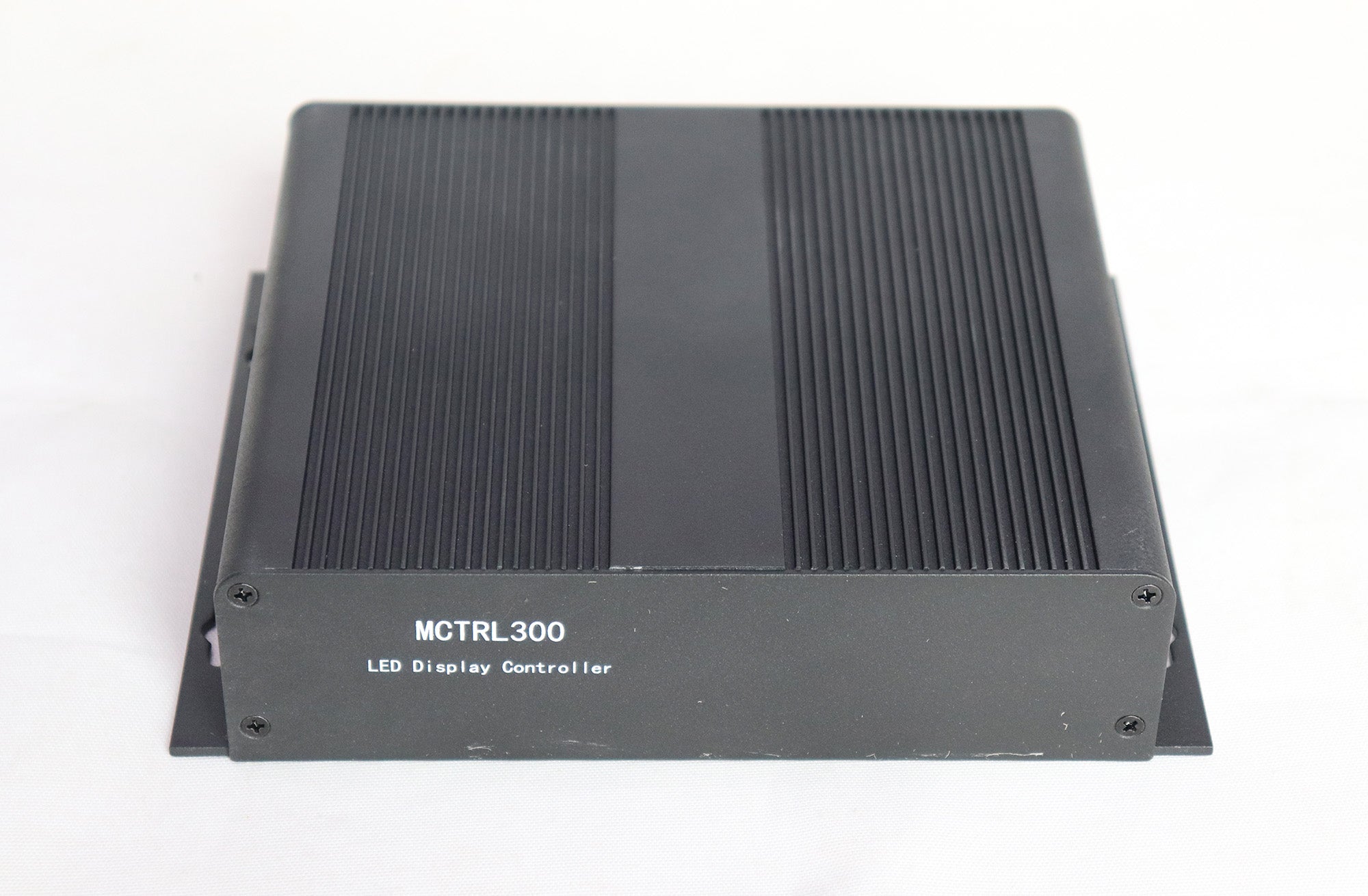
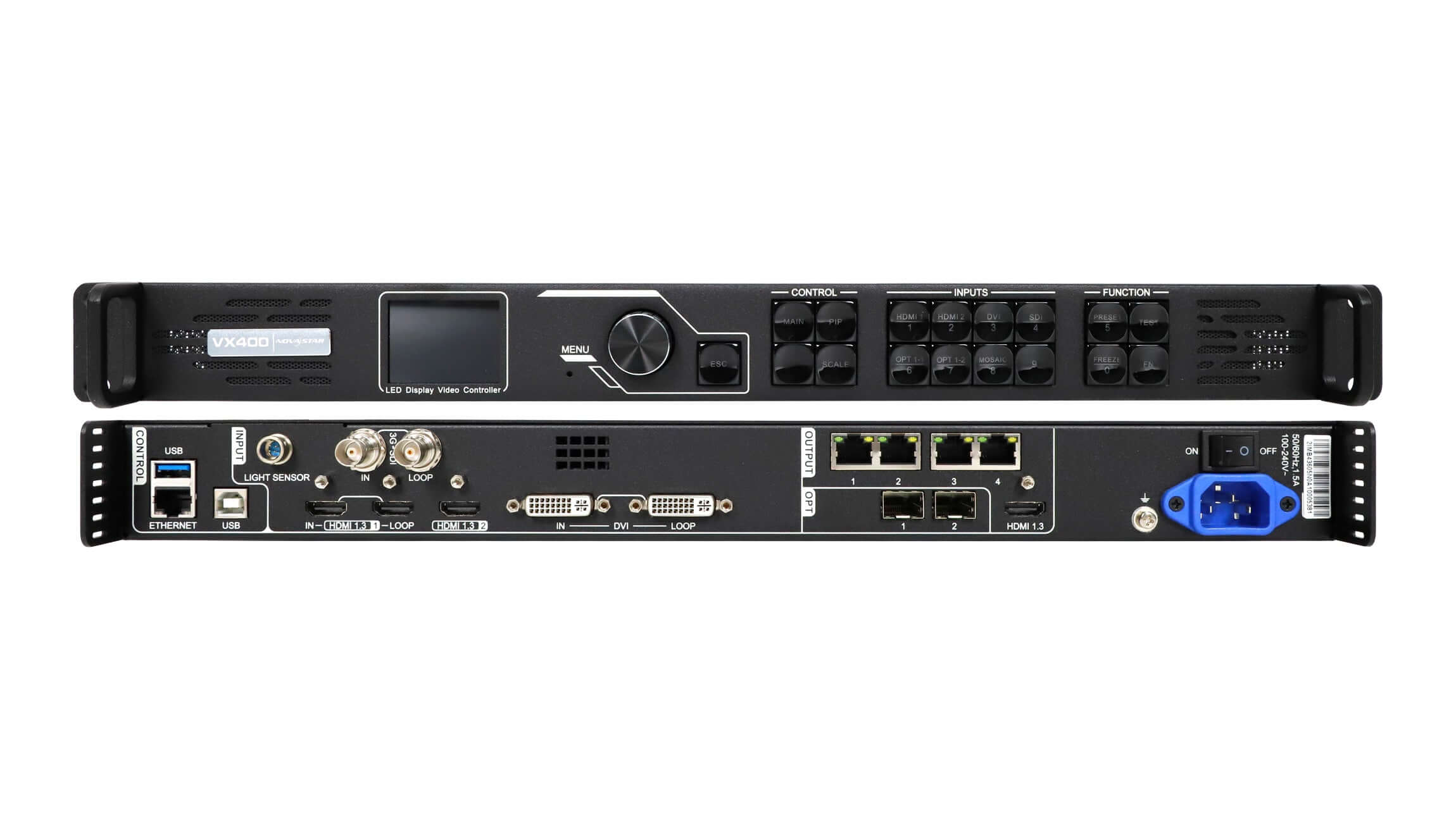
Configuration runs over the device’s control connection. On the MCTRL300 this is the USB interface for instruction communication; the MCTRL700 page lists a USB control interface and RS232 for cascading; the VX400 rear panel has USB and Ethernet ports in its CONTROL block. Plugging the computer into one of the Ethernet outputs that feed the cabinets will not connect the software to the controller.
02. Check the computer
The release notes state that the operating environment is Windows 7 or later. Use a known-good USB cable, try another USB port, and check in Windows Device Manager that the controller appears when it is connected and powered. If the device shows with a warning, reinstall the software package and reconnect.
03. Check the chain
If the software finds the sending device but not the receiving cards, check the Ethernet cables from the sending device to the first cabinet and between cabinets, and confirm the receiving cards have power. Then confirm that the receiving card firmware supports the module’s driver chip, as described in the precaution above. A practical shortcut is to compare the status lights of a cabinet that is not found with those of a working cabinet next to it; the difference usually points to the cable, the power or the card itself. Work from the sending device outward, one cabinet at a time, so you find the first break in the chain rather than a later symptom.

| Symptom | Check first | Then |
|---|---|---|
| No device found at all | Computer is on the control port (USB or control Ethernet), not an output port | Try another cable and USB port; check Device Manager |
| Device appears with a warning in Windows | Windows version is 7 or later | Reinstall the software package and reconnect |
| Sending device found, receiving cards missing | Ethernet cables to the first cabinet and between cabinets | Check receiving card power and status lights |
| Readback values look wrong | Receiving card firmware supports the module’s driver chip | Update the receiving card firmware, then read back again |
| Device not listed in the software | Release notes of the installed version | Install a newer version that lists the device |
04. Setting up a replacement receiving card
When a receiving card in one cabinet is replaced, the new card has to receive the same parameters as its neighbors. The usual sequence is to connect to the sending device, read back or load the saved configuration, send the receiving card parameters to the new card, and then upload the calibration coefficients for that cabinet if the screen is calibrated. Our MRV208-N page lists calibration coefficient management and upload among its maintenance functions and recommends recording the current firmware and configuration before removing the original card. After the swap, display a test pattern and compare the cabinet with its neighbors before closing it.
5. Good practice for configuration files
The software makes it easy to change a screen and just as easy to lose a working setup. A few habits prevent most problems.
01. Save before you change
Before changing receiving card parameters, upgrading firmware or installing a new software version, save the current configuration file and any calibration coefficients. Store them with a note of the NovaLCT version, the controller model and the date.
02. Keep one version per screen
On a service laptop that supports several screens, record which NovaLCT version each screen uses. Installing a newer version for one job and then using it on an older screen can introduce differences you did not plan for.
A simple naming rule for saved files helps: screen name, controller model, software version and date. With that, anyone on the team can pick up the right file and the right version without guessing.
03. Automatic brightness
Automatic brightness relies on a light sensor connected to the controller, such as the NS060 sensor we stock, and on the brightness settings in the software. The MCTRL300 page lists an integrated light sensor interface. Since the V5.5.0 notes list fixes for automatic brightness adjustment, screens that rely on it are good candidates for that version.
04. Calibration data
Calibrated screens store brightness and chroma correction coefficients for every cabinet. The V5.5.0 notes add layered adjustment of full-grayscale coefficients and a quick shading tool for full-grayscale correction, which can help when a calibrated screen shows uneven gray levels. Whatever version you use, keep a backup of the coefficients separate from the configuration file, because a lost coefficient set usually means a new calibration on site.
05. Special-shaped screens
Curved, spherical and irregular screens need careful mapping. The V5.4.7 notes add spherical and fan-shaped screens to the special-shaped screen tools, and the V5.5.0 notes list readback of cabinet IDs for complex screens and light board ID settings for complex images. If you are configuring a non-rectangular screen, these releases give more mapping options than the older ones.

Frequently asked questions
Is NovaLCT free to download?
Yes. Our download posts provide V5.5.0, V5.4.7, V5.4.4.6 and the older V5.2.0 to V5.4.2 releases free of charge.
Which operating system does NovaLCT need?
The release notes in our V5.4.4.6 post state that the software runs on Windows 7 and later.
Why does NovaLCT show no hardware?
Most often the computer is connected to an output port instead of the control port, or the USB cable or port is faulty. Check the connection and Windows Device Manager first, then confirm that the installed version lists your device.
Should I always install the newest NovaLCT?
For a new system, use the newest version that lists all your devices. For an existing screen, keep the version already used on it unless you need a new feature, a new device or a specific fix.
Does NovaLCT configure Taurus media players?
The V5.4.7 notes list Taurus players from the TB1 to the TB60 among the supported multimedia players.
What is the difference between NovaLCT and V-Can?
The configuration software sets up the screen: cabinets, receiving cards, brightness and calibration. Our VX600 and VX1000 pages list V-Can for video controller operation, including layer and preset management.
What does the receiving card firmware have to do with NovaLCT?
The V5.4.4.6 notes warn that if the receiving card firmware does not support the module’s driver chip, readback values are unreliable. Update the firmware to a version that supports the chip.
Getting help with your NovaStar system
You can download each NovaLCT version from the posts linked in Table 1. For hardware, see the MCTRL300 sending box, the MCTRL700 and the NS060 light sensor, or our NovaStar MRV receiving card guide.
If a screen will not connect or you are unsure which version to use, contact us with your system details: the controller and receiving card models, the NovaLCT version you are using, the Windows version and a short description of the symptom. Setup videos are also on the EagerLED YouTube channel.